Use DBOS With Lakebase
Here's how to connect your DBOS application running on your computer or cloud environment to your Databricks Lakebase Postgres database.
1. Set up a Local Application
If you haven't already, follow the quickstart to set up a DBOS application locally. The rest of this guide will assume you have a local application.
2. Connect to Lakebase
- Native Postgres Password Authentication
- OAuth Token Authentication
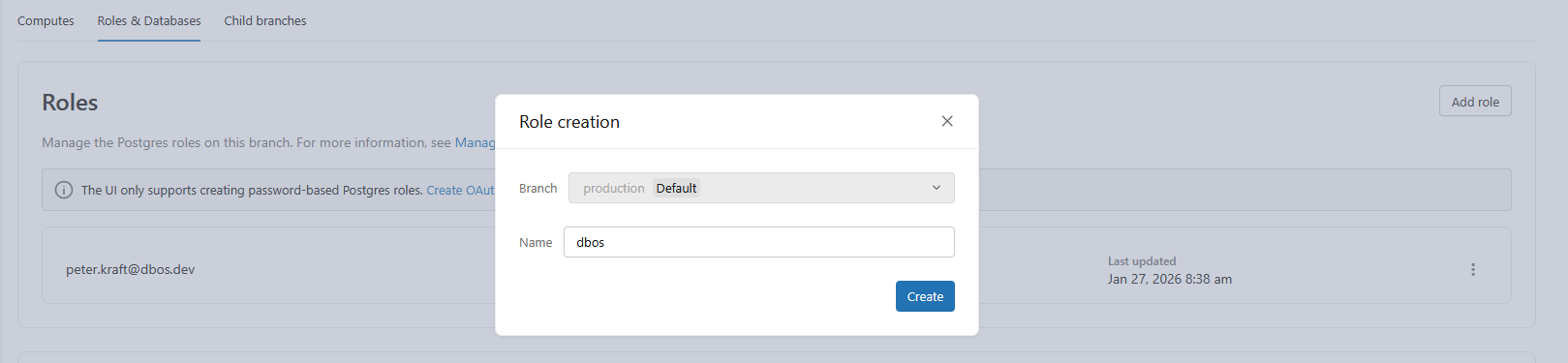
From the "Roles & Databases" tab of your Lakebase console, create a Postgres role that you will use to access your Lakebase database from your DBOS application.
Next, click "Connect" on your Lakebase console to retrieve connection information for your Lakebase database. You should see a screen that looks like this:
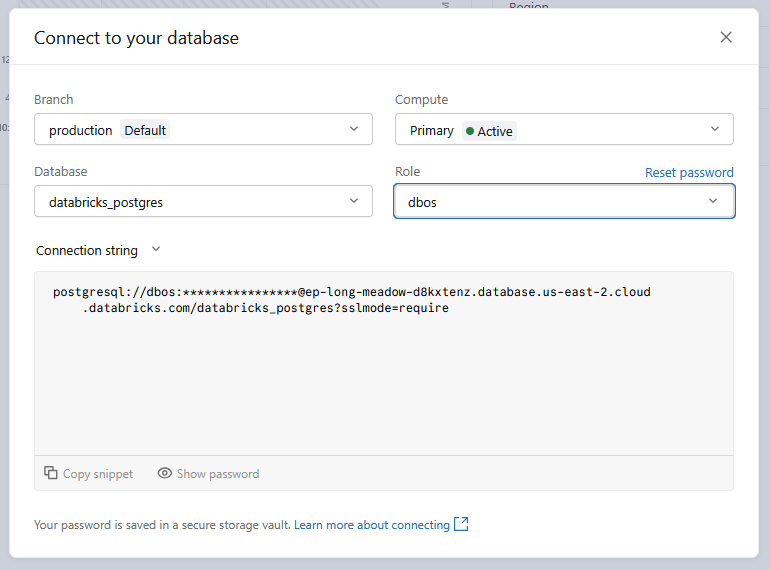
This page shows the connection string for your database. There are a few settings you may wish to alter before retrieving this connection string:
- Select the Postgres role you created from the dropdown.
- Make sure you are viewing your "Connection string" from the dropdown.
- By default, you will use the
databricks_postgresdatabase. If you want to use a different database, create it from the dropdown.
When you are ready, copy the connection string (including the password) from the dashboard and set the DBOS_SYSTEM_DATABASE_URL environment variable to it:
export DBOS_SYSTEM_DATABASE_URL="<your connection string>"
Programmatic OAuth token generation through the Databricks SDK is only available in Python.
First, install the Databricks SDK into your application, then follow this guide to authenticate:
pip install databricks-sdk
Then, add this code to your application to configure DBOS to retrieve and use a Databricks OAuth token for authentication with your Lakebase database:
Databricks OAuth Authentication
from databricks.sdk import WorkspaceClient
import psycopg
import sqlalchemy as sa

def create_databricks_oauth_engine(database_url: str, lakebase_endpoint: str) -> sa.Engine:
    """
    Create a SQLAlchemy engine that uses Databricks OAuth tokens for authentication.

    Each new connection will fetch a fresh OAuth token from Databricks.
    """
    workspace_client = WorkspaceClient()

    def get_connection() -> psycopg.Connection:
        token = workspace_client.postgres.generate_database_credential(
            endpoint=lakebase_endpoint
        ).token
        return psycopg.connect(database_url, password=token)

    return sa.create_engine("postgresql+psycopg://", creator=get_connection)


if __name__ == "__main__":
    engine = create_databricks_oauth_engine(
        os.environ["DBOS_SYSTEM_DATABASE_URL"],
        os.environ["DATABRICKS_LAKEBASE_ENDPOINT"],
    )
    config: DBOSConfig = {
        "name": "my-app",
        "application_version": "0.1.0",
        "system_database_engine": engine,
    }
    DBOS(config=config)
    DBOS.launch()
    uvicorn.run(app, host="0.0.0.0", port=8000)
Next, click "Connect" on your Lakebase console to retrieve connection information for your Lakebase database. You should see a screen that looks like this:
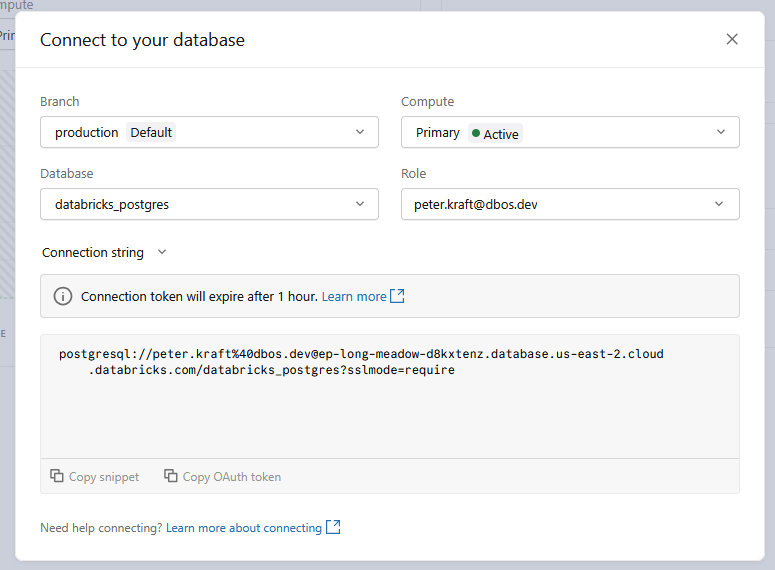
This page shows the connection string for your database. There are a few settings you may wish to alter before retrieving this connection string:
- Make sure you are viewing your "Connection string" from the dropdown.
- By default, you will use the
databricks_postgresdatabase. If you want to use a different database, create it from the dropdown.
When you are ready, copy the connection string from the dashboard and set the DBOS_SYSTEM_DATABASE_URL environment variable to it:
export DBOS_SYSTEM_DATABASE_URL="<your connection string>"
Also, set the DATABRICKS_LAKEBASE_ENDPOINT environment variable to your Lakebase endpoint:
export DATABRICKS_LAKEBASE_ENDPOINT="projects/<project-id>/branches/<branch-id>/endpoints/<compute-id>"
3. Launch Your Application
Now, launch your DBOS application. It should successfully connect to your Lakebase database, printing your masked Lakebase database URL on startup.
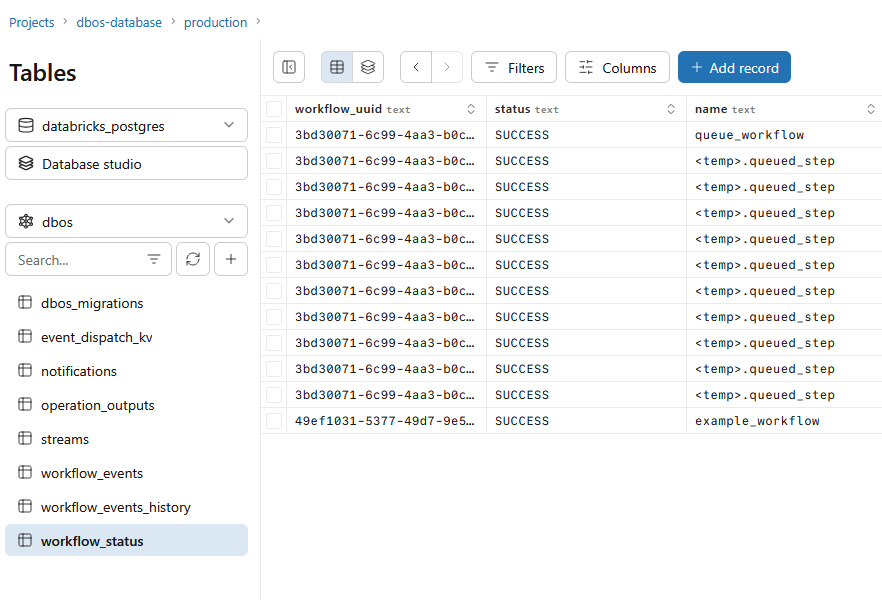
After connecting your DBOS application to Lakebase, you can use the Lakebase console to view your DBOS system tables.
Open the "Tables" tab in the Lakebase console.
For your database, select the database to which you connected your DBOS application (default databricks_postgres).
For your schema, select "dbos".
You can now see DBOS durably checkpoint your workflows to your Lakebase database: